Alerts & Notifications
Configure email notifications to stay informed about webhook relay failures and delivery issues.
What are Alerts?
Alerts notify you when webhook relays or deliveries fail, helping you:
- Monitor Health: Stay informed about system issues
- Quick Response: React to failures immediately
- Prevent Downtime: Fix issues before they escalate
- Track Patterns: Identify recurring problems
Accessing Notifications Settings
Navigate to Settings → Notifications tab.
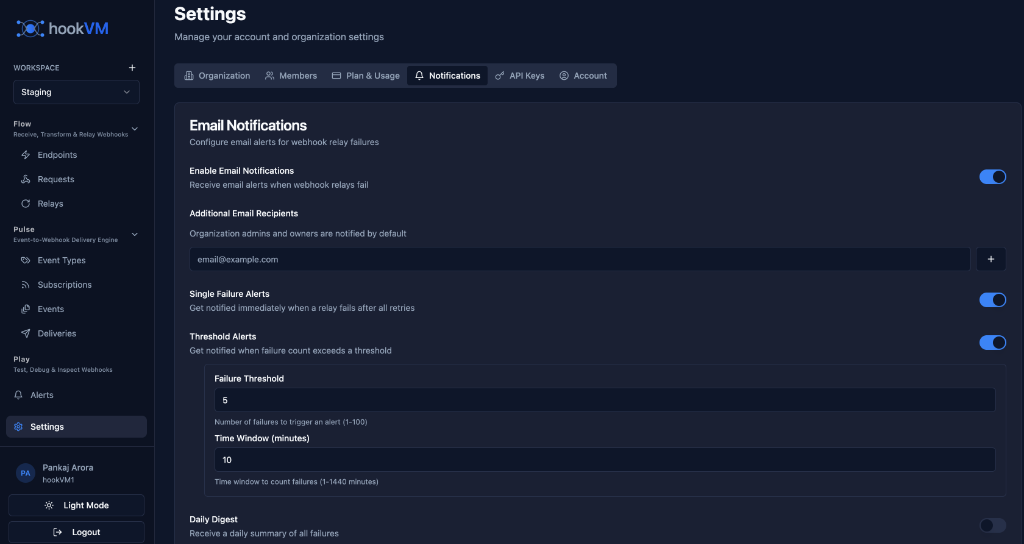
Email Notifications
Configure email alerts for webhook relay failures.
Enable Email Notifications
Toggle: Enable Email Notifications
Description: Receive email alerts when webhook relays fail
When Enabled:
- Alerts sent to your email
- Additional recipients notified
- Configurable alert types
When Disabled:
- No email alerts sent
- Must monitor manually
- Failures may go unnoticed
Additional Email Recipients
Add team members to receive alerts.
Adding Recipients
Field: Additional Email Recipients
Format: Email addresses (comma-separated)
Example:
email@example.com
Default: Organization admins and owners are notified automatically
Use Cases:
- Notify DevOps team
- Alert on-call engineers
- Include stakeholders
- Distribute responsibility
Multiple Recipients
Add multiple email addresses:
devops@company.com, oncall@company.com, alerts@company.com
Click "+" to add the email to the list.
Alert Types
Configure which types of failures trigger alerts.
Single Failure Alerts
Toggle: Single Failure Alerts
Description: Get notified immediately when a relay fails after all retries
When Triggered:
- Relay fails after all retry attempts
- Immediate notification sent
- One alert per failure
Use Cases:
- Critical integrations
- Real-time monitoring
- Immediate response needed
Example Scenario:
Relay to customer endpoint fails after 3 retries
→ Email alert sent immediately
→ Team investigates and fixes
Threshold Alerts
Toggle: Threshold Alerts
Description: Get notified when failure count exceeds a threshold
Configuration:
- Failure Threshold: Number of failures to trigger alert (1-100)
- Time Window: Time period to count failures (minutes)
When Triggered:
- Failure count exceeds threshold within time window
- Single alert sent
- Prevents alert spam
Use Cases:
- High-volume integrations
- Pattern detection
- Avoiding alert fatigue
Example Scenario:
Threshold: 5 failures
Time Window: 10 minutes

Failures: 1, 2, 3, 4, 5 within 10 minutes
→ Email alert sent after 5th failure
→ No more alerts until next window
Threshold Configuration
Failure Threshold: 5
- Number of failures to trigger an alert (1-100)
- Default: 5
- Recommended: 3-10 depending on volume
Time Window (minutes): 10
- Time window to count failures (1-1440 minutes)
- Default: 10 minutes
- Recommended: 5-30 minutes
Example Configurations:
High Sensitivity (Critical systems):
Failure Threshold: 3
Time Window: 5 minutes
Balanced (Standard monitoring):
Failure Threshold: 5
Time Window: 10 minutes
Low Sensitivity (High volume):
Failure Threshold: 10
Time Window: 30 minutes
Daily Digest
Toggle: Daily Digest
Description: Receive a daily summary of all failures
When Sent:
- Once per day
- Summary of all failures
- Aggregated statistics
Contains:
- Total failure count
- Failed endpoints
- Common error types
- Trends and patterns
Use Cases:
- Regular monitoring
- Weekly reviews
- Long-term tracking
- Performance analysis
Alert Email Format
Single Failure Alert
Subject: [hookVM] Relay Failure: {endpoint_name}
Body:
Relay Failure Alert

Endpoint: Stripe Production
Destination: https://api.yourapp.com/webhooks
Event: order.shipped
Attempts: 3
Final Error: Connection timeout

View Details: https://app.hookvm.com/relays/log_abc123

Time: 2025-12-27 10:30:45 UTC
Threshold Alert
Subject: [hookVM] Threshold Alert: {count} failures in {window} minutes
Body:
Threshold Alert

Failures: 5 in 10 minutes
Endpoint: Stripe Production
Destination: https://api.yourapp.com/webhooks

Recent Failures:
- order.shipped (3 attempts) - Connection timeout
- payment.completed (3 attempts) - Connection timeout
- user.created (3 attempts) - Connection timeout

View All: https://app.hookvm.com/relays

Time: 2025-12-27 10:30:45 UTC
Daily Digest
Subject: [hookVM] Daily Digest: {date}
Body:
Daily Digest - December 27, 2025

Summary:
- Total Failures: 15
- Affected Endpoints: 3
- Most Common Error: Connection timeout

Breakdown by Endpoint:
1. Stripe Production: 8 failures
2. GitHub Events: 5 failures
3. Slack Notifications: 2 failures

Top Errors:
- Connection timeout: 10
- 500 Internal Server Error: 3
- 503 Service Unavailable: 2

View Details: https://app.hookvm.com/relays

Generated: 2025-12-27 00:00:00 UTC
Best Practices
Alert Configuration
✅ Enable Notifications: Always enable for production
✅ Set Appropriate Thresholds: Balance sensitivity and noise
✅ Add Team Members: Distribute alerts to relevant people
✅ Use Both Alert Types: Single for critical, threshold for volume
Threshold Settings
✅ Start Conservative: Begin with higher thresholds
✅ Adjust Based on Volume: Lower for low-volume, higher for high-volume
✅ Monitor Alert Frequency: Reduce threshold if too many alerts
✅ Consider Time Zones: Set time window based on team availability
Team Notifications
✅ Include On-Call: Add on-call rotation email
✅ Separate by Severity: Different emails for different alert types
✅ Use Distribution Lists: Email groups instead of individuals
✅ Document Procedures: Include runbooks in alerts
Alert Response
✅ Acknowledge Quickly: Respond to alerts promptly
✅ Investigate Root Cause: Don't just fix symptoms
✅ Update Thresholds: Adjust based on patterns
✅ Document Issues: Keep log of recurring problems
Common Scenarios
Critical Production Integration
Configuration:
Enable Email Notifications: ✓
Single Failure Alerts: ✓
Threshold Alerts: ✓
  Failure Threshold: 3
  Time Window: 5 minutes
Daily Digest: ✓
Additional Recipients: oncall@company.com, devops@company.com
Rationale: Immediate alerts for any failure, low threshold for quick detection
High-Volume Integration
Configuration:
Enable Email Notifications: ✓
Single Failure Alerts: ✗
Threshold Alerts: ✓
  Failure Threshold: 10
  Time Window: 30 minutes
Daily Digest: ✓
Additional Recipients: monitoring@company.com
Rationale: Avoid alert fatigue, focus on patterns, daily summary for trends
Development Environment
Configuration:
Enable Email Notifications: ✓
Single Failure Alerts: ✗
Threshold Alerts: ✗
Daily Digest: ✓
Additional Recipients: dev-team@company.com
Rationale: Minimal alerts, daily summary sufficient for non-critical environment
Troubleshooting
Not Receiving Alerts
Possible Causes:
- Email notifications disabled
- Email in spam folder
- Incorrect email address
- Threshold not reached
Solutions:
- Verify notifications are enabled
- Check spam/junk folder
- Verify email address is correct
- Check threshold settings
Too Many Alerts
Possible Causes:
- Threshold too low
- Single failure alerts enabled for high-volume
- Actual system issues
Solutions:
- Increase failure threshold
- Disable single failure alerts
- Increase time window
- Investigate underlying issues
Missing Alerts
Possible Causes:
- Threshold too high
- Time window too short
- Failures spread over time
Solutions:
- Lower failure threshold
- Increase time window
- Enable single failure alerts
- Review failure patterns
Other Settings Tabs
Organization
Manage organization details:
- Organization name
- Timezone
- Date format
- Your role
See Organization Settings for details.
Members
Manage team members:
- Invite members
- Assign roles
- Remove members
- View permissions
See Team Members Settings for details.
Plan & Usage
View subscription details:
- Current plan
- Usage statistics
- Billing information
- Upgrade options
API Keys
Manage API keys:
- Create API keys
- View existing keys
- Revoke keys
- Set permissions
Account
Manage your account:
- Profile information
- Email preferences
- Password
- Security settings
Next Steps
- Relay Logs - Monitor relay failures
- Deliveries - Track delivery status
- Organization Settings - Manage team and settings
Stay informed! Configure alerts to monitor your webhook integrations effectively! 🔔