API Keys
Create and manage API keys for authenticating with hookVM APIs.
What are API Keys?
API Keys authenticate your applications when using hookVM APIs.
Use Cases:
- Send events via Pulse API
- Create subscriptions programmatically
- Manage endpoints via API
- Automate webhook workflows
API Keys Page
View and manage all your API keys.
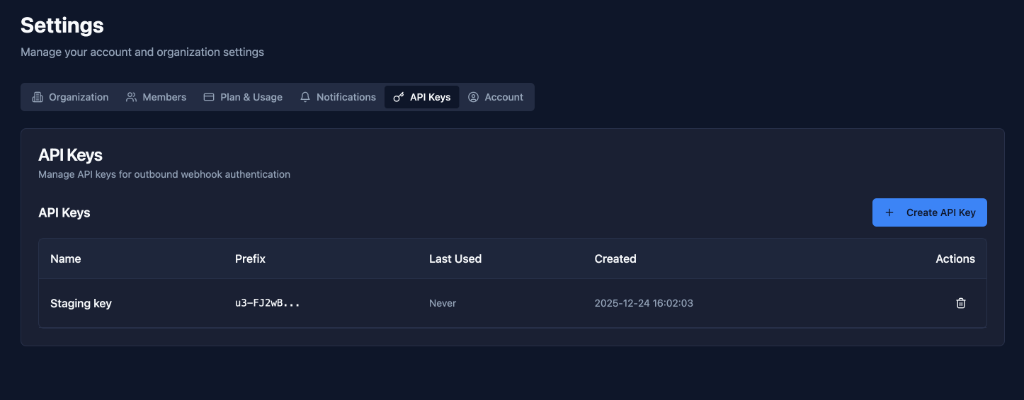
Key Information
Columns:
- Name: Descriptive name for the key
- Prefix: First few characters of the key
- Last Used: When the key was last used
- Created: When the key was created
- Actions: Delete key
Creating API Keys
Step 1: Click Create API Key
Click the "Create API Key" button in the top right.
Step 2: Name Your Key
Field: Name
Examples:
Production API
Staging Environment
Development Testing
CI/CD Pipeline
Best Practices:
- Descriptive names
- Include environment
- Mention purpose
- Easy to identify
Step 3: Copy and Save
Important: Copy the API key immediately!
Format: u3-FJ2w8... (full key shown once)
Save Securely:
- Environment variables
- Secret management system
- Password manager
- Secure vault
Never:
- Commit to git
- Share publicly
- Store in code
- Email or chat
Using API Keys
Authentication Header
Header: Authorization: Bearer YOUR_API_KEY
Example:
curl -X POST https://api.hookvm.com/v1/events \
  -H "Authorization: Bearer u3-FJ2w8..." \
  -H "Content-Type: application/json" \
  -d '{"event_type": "test", "data": {}}'
SDK Configuration
Node.js:
const hookvm = require('@hookvm/node');
const client = new hookvm.Client('u3-FJ2w8...');
Python:
import hookvm
client = hookvm.Client('u3-FJ2w8...')
Go:
client := hookvm.NewClient("u3-FJ2w8...")
Managing API Keys
Viewing Keys
List View: See all keys with details
Information Shown:
- Key name
- Prefix (first few characters)
- Last used timestamp
- Creation date
Full Key: Never shown again after creation
Last Used Tracking
Purpose: Monitor key usage
Shows:
- "Never" - Key hasn't been used
- Timestamp - Last API call with this key
Use Cases:
- Identify unused keys
- Detect unauthorized use
- Audit key activity
Deleting Keys
When to Delete:
- Key compromised
- No longer needed
- Rotating keys
- Decommissioning service
How to Delete:
- Click delete icon
- Confirm deletion
- Key revoked immediately
Effects:
- API calls with key fail
- Applications using key stop working
- Cannot be recovered
Best Practices
Key Management
✅ One Key Per Environment: Separate prod/staging/dev
✅ Descriptive Names: Easy to identify purpose
✅ Rotate Regularly: Change keys periodically
✅ Delete Unused: Remove old keys
Security
✅ Never Commit: Don't put in version control
✅ Use Environment Variables: Store securely
✅ Limit Exposure: Only share with trusted systems
✅ Monitor Usage: Check "Last Used" regularly
Organization
✅ Document Keys: Note what each key is for
✅ Track Ownership: Know who created each key
✅ Audit Access: Review keys quarterly
✅ Emergency Plan: Know how to rotate if compromised
Rotation
✅ Schedule Rotation: Every 90 days
✅ Create New First: Before deleting old
✅ Update Applications: Deploy new key
✅ Delete Old: After confirming new key works
Common Scenarios
Production Application
Setup:
Name: Production API
Environment: Production
Storage: AWS Secrets Manager
Rotation: Every 90 days
Usage:
// Load from environment
const apiKey = process.env.HOOKVM_API_KEY;
const client = new hookvm.Client(apiKey);
CI/CD Pipeline
Setup:
Name: GitHub Actions
Environment: CI/CD
Storage: GitHub Secrets
Rotation: Every 180 days
Usage:
# .github/workflows/deploy.yml
env:
  HOOKVM_API_KEY: ${{ secrets.HOOKVM_API_KEY }}
Development Testing
Setup:
Name: Local Development
Environment: Development
Storage: .env file (gitignored)
Rotation: As needed
Usage:
# .env
HOOKVM_API_KEY=u3-FJ2w8...
Key Rotation Process
Step 1: Create New Key
- Click "Create API Key"
- Name it (e.g., "Production API v2")
- Copy and save securely
Step 2: Update Applications
- Update environment variables
- Deploy to staging first
- Test thoroughly
- Deploy to production
Step 3: Monitor
- Verify new key working
- Check "Last Used" on new key
- Ensure old key not being used
Step 4: Delete Old Key
- Wait 24-48 hours
- Confirm no usage of old key
- Delete old key
- Update documentation
Troubleshooting
API Calls Failing
Possible Causes:
- Invalid API key
- Key deleted
- Key not in header
Solutions:
- Verify key is correct
- Check key still exists
- Verify Authorization header format
Key Not Working
Possible Causes:
- Typo in key
- Wrong environment
- Key revoked
Solutions:
- Copy key again carefully
- Verify using correct key
- Create new key if needed
Cannot Create Key
Possible Causes:
- Plan limit reached
- Insufficient permissions
Solutions:
- Check plan limits
- Verify you're an owner/admin
- Delete unused keys
Next Steps
- Sending Events - Use API keys to send events
- Organization - Manage organization
- Members - Manage team access
Secure your API access with properly managed API keys! 🔑